
Hướng Dẫn Sử Dụng
Detailed Guide to Configuring Individual Proxies for Each Profile on Telegram Desktop

Table of contents
The Importance of Proxy Isolation When Managing Multiple Telegram Accounts
Telegram is a popular communication platform for individuals and businesses operating in online environments. For marketers, community managers, or customer support teams, managing multiple accounts simultaneously is an essential need. However, running multiple accounts on the same device and sharing a single network address can lead to cross-account contamination when issues arise.
Using a proxy for telegram is a technical solution that assigns each account an independent network address. This mechanism isolates the operating environment of each login session, minimizing the risk that the platform's moderation algorithms detect unusual behavior originating from the same network source.
Comparing Common Proxy Types for Telegram: SOCKS5 and MTProto
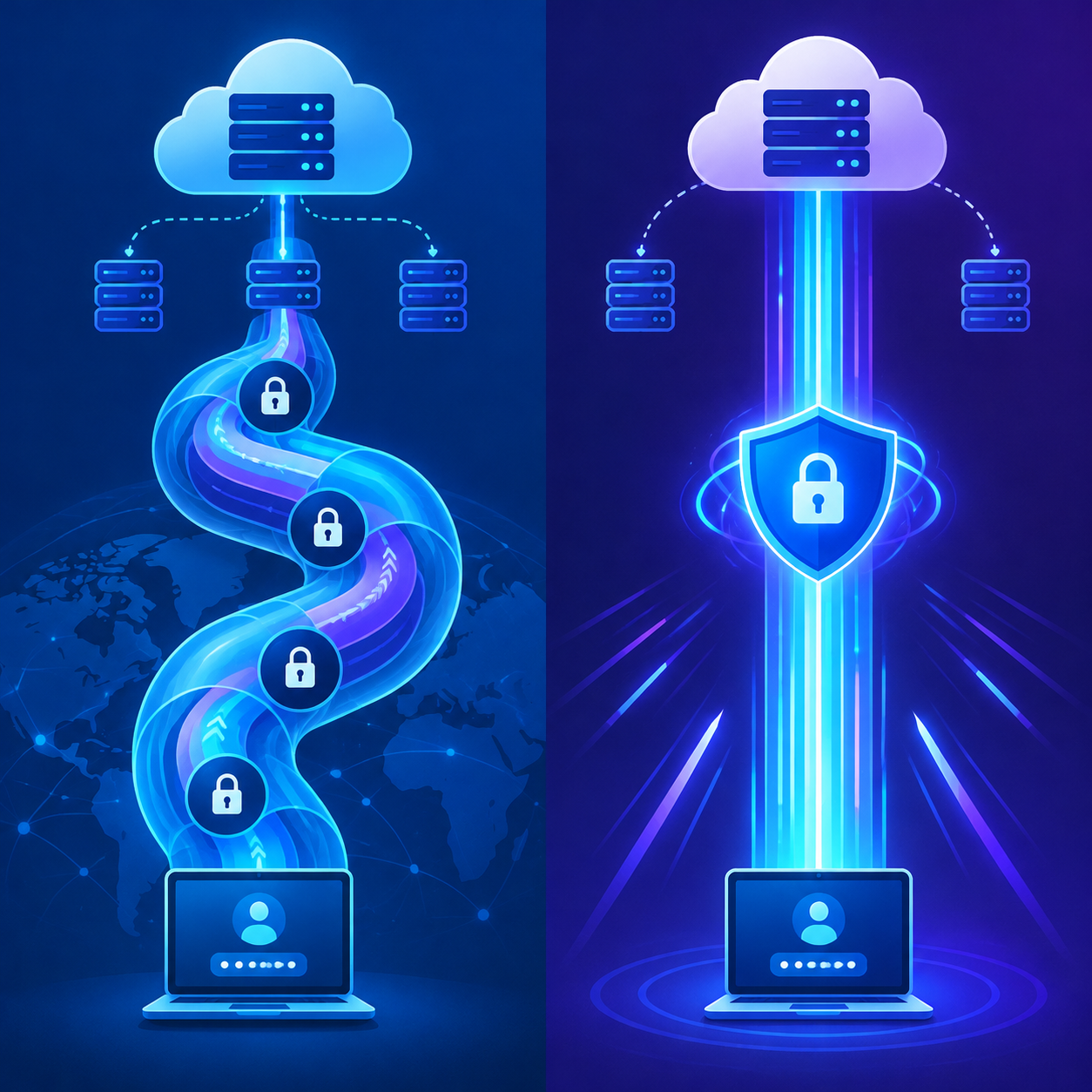
When setting up an intermediary network, the choice of protocol plays a decisive role in application stability and compatibility. Currently, the two most popular protocols used for this platform are SOCKS5 and MTProto.
SOCKS5 Protocol
SOCKS5 is a standard proxy protocol that operates at a lower network layer and routes traffic without deeply inspecting packet contents. Advantages of this protocol include:
- Broad compatibility across most platforms and networking software.
- Support for username and password authentication, enhancing privacy.
- Flexible routing for both TCP and UDP data traffic.
MTProto Protocol
MTProto is a proprietary protocol designed specifically for the Telegram ecosystem. It possesses distinct characteristics:
- Deep optimization for Telegram data traffic, delivering fast and stable connections.
- Simple configuration requiring a Secret key instead of complex login credentials.
- Engineered to function well even in network environments where connections to application servers are restricted.
Depending on actual requirements, users can evaluate between proxy mtproto socks5 telegram to apply to specific accounts.
Methods for Creating Multiple Independent Telegram Desktop Profiles

By default, the Telegram Desktop application allows switching between accounts, but these accounts share the same network connection settings. To assign independent proxies to each account, the application's configuration environments must be isolated.
Method 1: Using Telegram Desktop Portable
Telegram Portable is a non-installable version that stores all user data directly within the directory containing the executable file. The setup steps are as follows:
- Download the Portable version from the platform's official website and extract it into a separate folder.
- Copy this folder into multiple distinct directories, each corresponding to a working profile (e.g., Telegram_01, Telegram_02).
- Launch the executable file within each folder to create environments that are completely isolated in terms of data and network settings.
Method 2: Using Command-Line Parameters (-workdir)
If you prefer not to duplicate multiple executable files, you can create Shortcuts and use command-line parameters to specify separate data storage directories:
- Create a Shortcut for the Telegram Desktop executable file on the desktop.
- Right-click the shortcut and select Properties.
- In the Target field, append the path parameter to the end of the command line: -workdir "Path_to_data_storage_folder".
- Each shortcut with a distinct directory path will serve as an independent working profile.
Step-by-Step Telegram Desktop Proxy Configuration for Each Profile

After creating the isolated profile environments, the next step is to configure the proxy network address for each instance. The standard process for configuring telegram desktop proxy is carried out through the following steps:
- Open the Telegram Desktop instance corresponding to the profile you want to configure.
- Open the main menu by clicking the three horizontal bars icon in the upper left corner, then select Settings.
- In the options panel, navigate to Advanced.
- Under the Data and storage section, select Connection type. By default, the system is set to direct connection (Default).
- Select Use custom proxy and click Add proxy.
- Choose the appropriate network protocol:
- If SOCKS5 is selected: Enter Hostname (IP address or domain), Port, Username, and Password (if applicable).
- If MTProto is selected: Enter Hostname, Port, and the Secret key provided by the proxy service provider.
- Click Save to finish. The system will test the connection status and display the operational status directly on the interface.
To ensure that all account traffic routes through the intermediary network, users should also enable the Try connecting through IPv6 option if supported by the provider, or toggle on the option to connect through proxy for voice calls within the same settings menu.
Important Considerations When Managing Large Numbers of Telegram Accounts
When operating and managing multiple telegram accounts at scale for work, equipping isolated network infrastructure is only part of ensuring safety. Administrators should adhere to the following operational guidelines:
- Maintain location consistency: Avoid frequently changing an account's proxy address within short time frames. Rapid location jumps can trigger security verification flags on the account.
- Avoid free public proxies: Public network ranges are often heavily exploited by multiple users, suffer from unstable latency, and may already be flagged negatively by network monitoring systems.
- Avoid simultaneous automated actions: Even when profiles have dedicated IPs, sending bulk messages or joining groups at high frequency at the same time can result in account feature restrictions.
- Periodically monitor proxy health: Always verify that the proxy maintains a stable connection before transmitting critical data to prevent workflow interruptions.
Combining independent profile configurations with dedicated proxies forms a solid foundation, enabling professional multi-account Telegram management while minimizing the risk of cross-account linkage.
Related articles
Ready for real proxies, not just the guide?
Buy Residential, ISP, Datacenter, or Mobile proxies — live in minutes.
View products