
Hướng Dẫn Sử Dụng
Setting Up a Mobile Proxy on Android: Checking Your IP and Troubleshooting

Table of contents
Setting up a mobile proxy on Android helps route supported traffic through an intermediary server that uses a mobile network connection. However, entering the correct address and port is not enough: you also need to choose an appropriate setup method, check the exit IP, and confirm whether your apps actually use the proxy.
The guide below explains how to set up, test, and troubleshoot proxy connections while highlighting important limitations on Android.
Understanding Mobile Proxies on Android
A mobile proxy is an intermediary service whose exit IP address belongs to a mobile network connection. Configuring a regular proxy on your phone does not automatically make it a mobile proxy; this characteristic depends on the provider's infrastructure.
On Android, proxy settings in the Wi-Fi configuration apply only to the Wi-Fi network being edited and to apps that respect those settings. This is not a device-wide routing configuration.
If you need to use a proxy over mobile data or with apps that do not read Wi-Fi proxy settings, you will generally need a separate compatible tool. Some tools use a local VPN mechanism to forward traffic, but the scope of support varies by product.
Gather Connection Details Before Setup
Obtain the connection details from your provider's dashboard or official documentation:
- Server address: the proxy's domain name or IP address.
- Connection port: the port assigned to your service.
- Protocol: HTTP, HTTPS, or SOCKS, as specified by the service.
- Authentication method: a username and password, or an allowlist of permitted IP addresses.
- Service status: active and not suspended.
Do not share credentials in screenshots or public logs. Before changing the configuration, confirm that the device can access the Internet normally so you have a baseline for comparison.
How to Set Up a Mobile Proxy on Android over Wi-Fi
Open the Settings for the Connected Network
Go to Settings, open Wi-Fi or Internet, and select the network you are using. Look for an edit icon, advanced options, or a Proxy section. Menu names may vary by phone manufacturer and Android version.
Enter the Server Address and Port
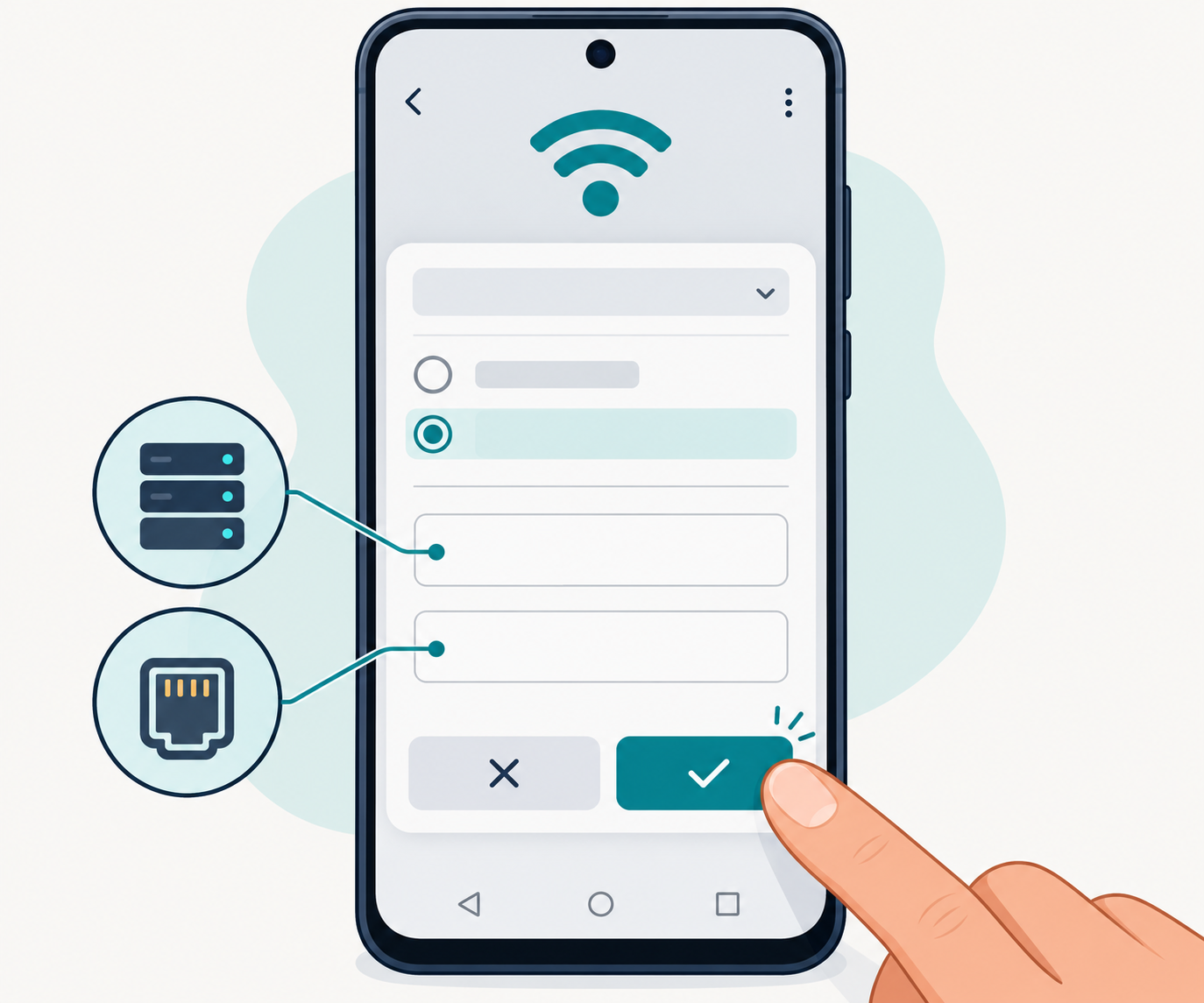
Set the Proxy mode to Manual. Enter the hostname and port in the appropriate fields, then save your changes. The hostname field usually accepts only a hostname or IP address, not a full URL containing a protocol and path.
Do not enter a combined string containing the username, password, server, and port in the hostname field. If the provider supplies the details in this format, separate the components according to its documentation.
Check Authentication Support
The standard Wi-Fi proxy interface on many Android devices does not include username and password fields. A browser may display a login prompt, but not all apps support this.
If authentication uses an IP allowlist, you need to register the public IP address of the source connection accessing the proxy, not the proxy's exit IP. When you switch networks, the source IP may change and need to be updated.
Using a Proxy over Mobile Data
Wi-Fi proxy settings do not automatically apply when your phone switches to mobile data. In this case, choose an app that supports your service's protocol and check whether it supports per-app or device-wide routing.
If the tool requests VPN permission, grant it only if you trust the developer and understand which traffic it handles. The tool may conflict with an active VPN.
Do not change the proxy settings in your APN on your own unless instructed by your carrier or administrator. The APN controls connectivity to your carrier's network; incorrect changes can disable mobile data access.
Check Your IP Address After Setup
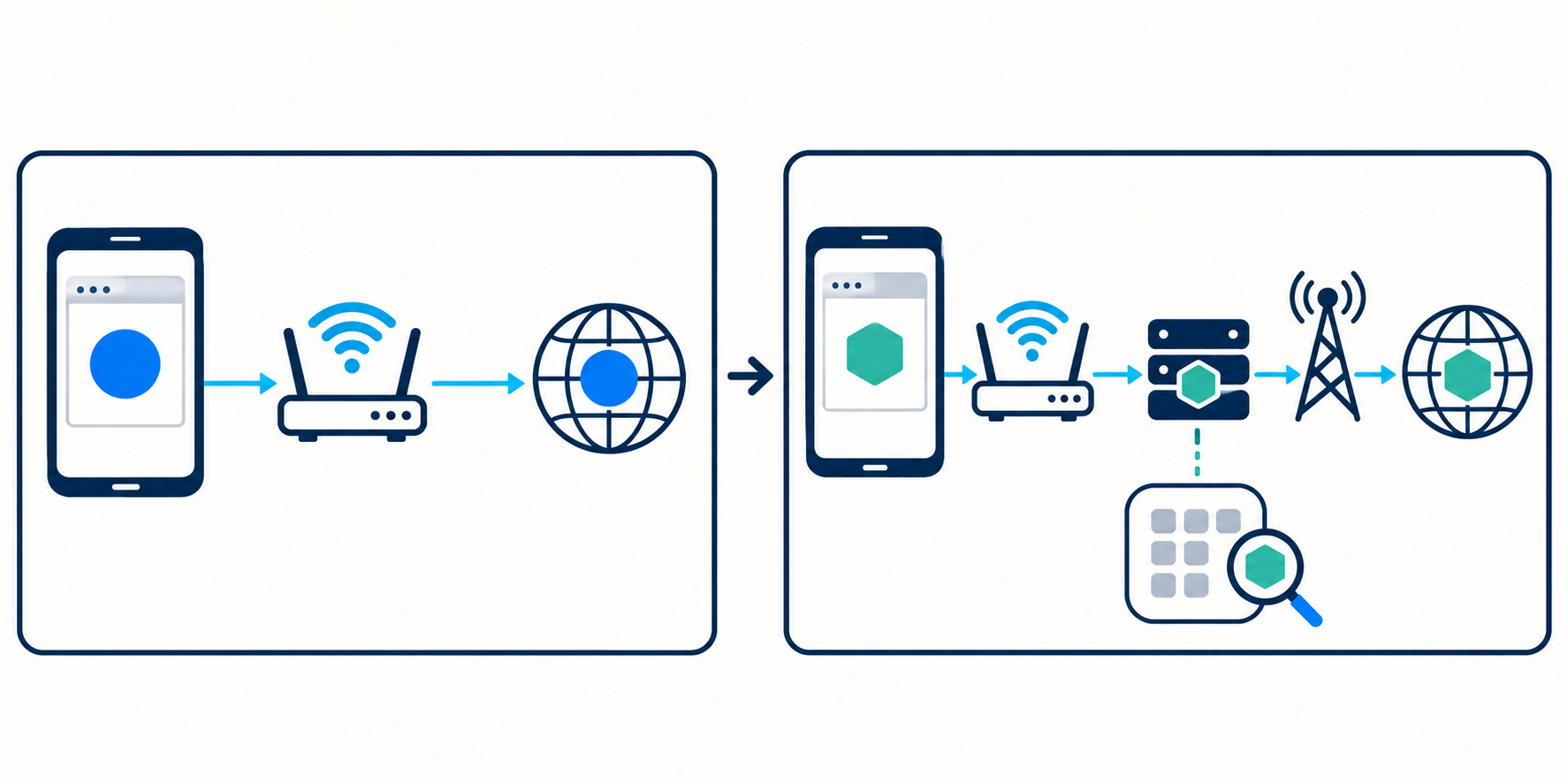
To confirm that the configuration is working, check your IP address using the same procedure before and after enabling the proxy:
- Open a trustworthy IP-checking website and record your initial public IP address.
- Enable the proxy using your chosen method, then reload the IP-checking page.
- Compare the displayed IP with the exit IP information in your service dashboard, if available.
- Test the app you intend to use directly rather than relying solely on the browser.
A changed IP suggests that the test request may have traveled through the new connection, but it does not prove that all traffic uses the proxy. In addition, location data and carrier classifications on lookup websites may differ or be slow to update.
Troubleshooting Common Proxy Connection Errors
No Internet Access After Enabling the Proxy
Temporarily disable the proxy and try again. If the direct connection works, check the hostname, port, protocol, and service status. Extra spaces introduced when copying details or selecting the wrong port can also cause errors.
Login Prompts or Authentication Errors Appear
Check the username, password, and username format. For IP-based access, confirm that your current source IP has been registered. If the app does not support the authentication method, use a compatible tool.
The Browser Works, but Other Apps Cannot Connect
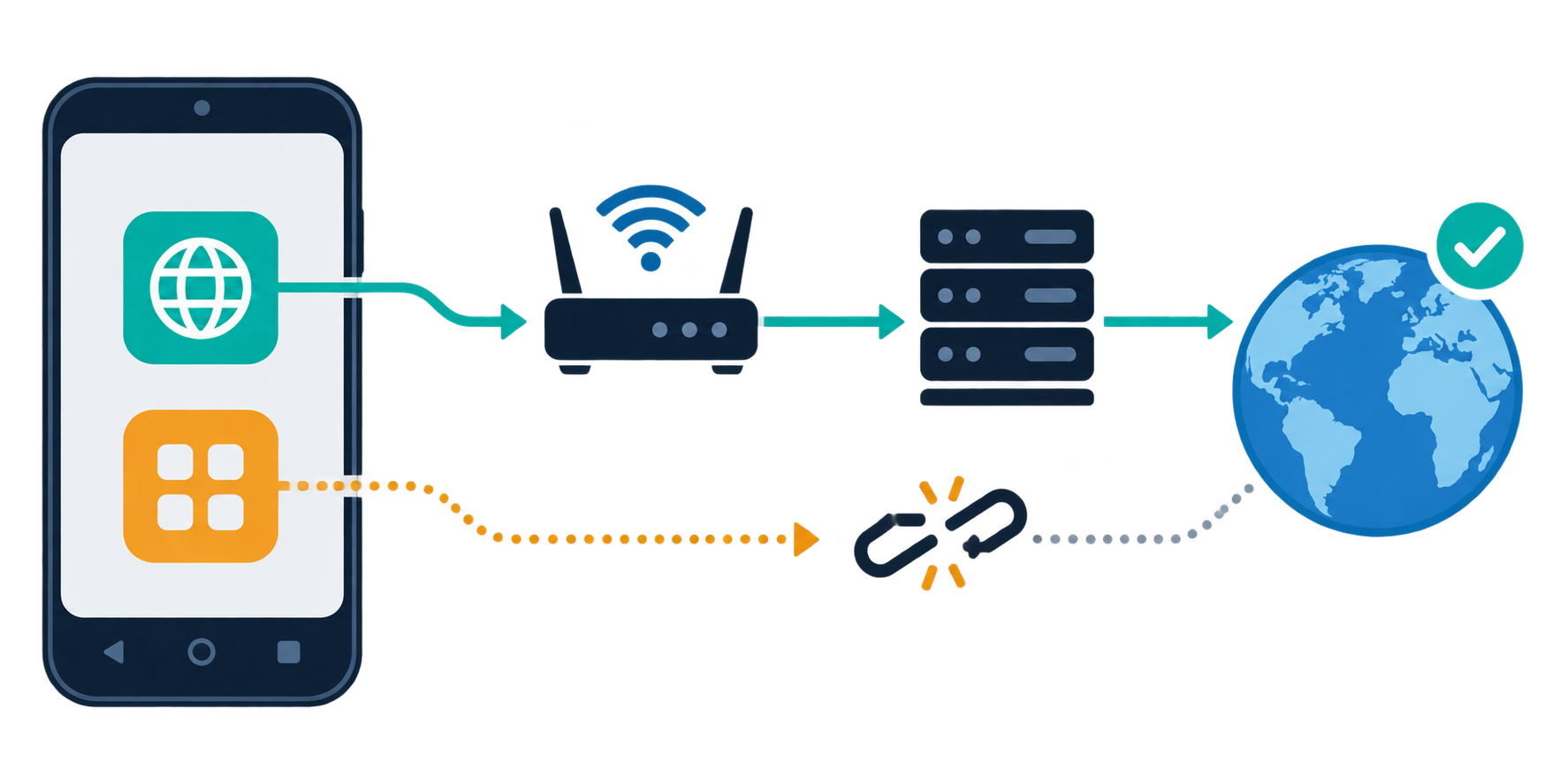
The app may not use the system proxy or may require a protocol that the service does not support. Check the app's documentation before changing device-wide settings.
The IP Does Not Change or the Connection Is Unstable
Confirm that you are testing the correct network and that the proxy tool is still running. For apps running in the background, check battery restrictions and data usage permissions. If the service offers IP rotation, check the provider's connection session policy.
A Website Reports a Certificate Error
Do not bypass warnings or install unfamiliar certificates just to continue browsing. Check your device's date and time, and contact the provider if the error occurs only when the proxy is enabled.
Conclusion
For a stable mobile proxy setup, you need to identify the correct protocol, authentication method, and scope of app support. After setup, check your IP address and directly test the task you intend to perform. When proxy connection errors occur, check the underlying network, server details, authentication, and compatibility in sequence to identify the cause.
Related articles
Ready for real proxies, not just the guide?
Buy Residential, ISP, Datacenter, or Mobile proxies — live in minutes.
View products