
Hướng Dẫn Sử Dụng
Guide to Configuring Proxies for Android Emulators (LDPlayer, NoxPlayer) for Mobile Account Farming

Table of contents
The Role of Proxies in Managing and Farming Accounts on Android Emulators
In digital marketing and managing social media or e-commerce accounts, using Android emulators is a familiar solution. Software like LDPlayer or NoxPlayer allows users to operate a mobile environment flexibly right on their personal computers.
However, if multiple emulator instances operate under a single default network address, app platforms may detect the overlap and restrict features or temporarily suspend accounts. Therefore, configuring an Android emulator proxy becomes a mandatory technical step to separate network identities, assigning each working session to a unique IP address.
Differentiating Popular Network Protocols When Using Emulators
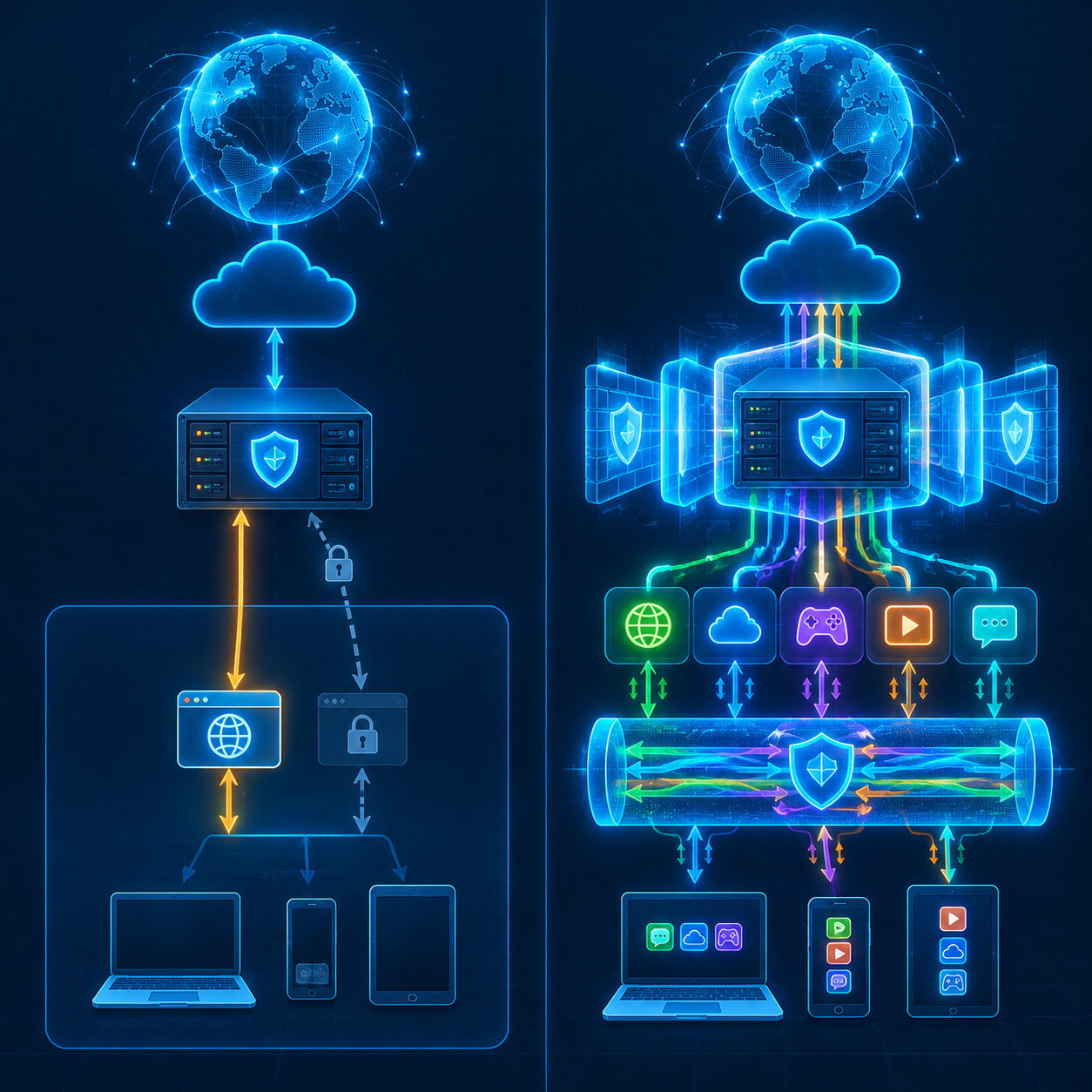
To achieve optimal efficiency when operating an account system, administrators need to choose the right network connection type suitable for how mobile apps operate.
HTTP/HTTPS Proxy
This protocol primarily handles web-level traffic. Although easy to configure via the built-in Wi-Fi settings on the Android operating system, an HTTP proxy sometimes does not fully support data packets from specialized apps, leading to the risk of leaking the host machine's original IP address.
SOCKS5 Proxy
Highly regarded for its flexibility, a socks5 proxy for emulators allows routing all data traffic at the transport layer, supporting both TCP and UDP protocols. This ensures mobile apps run smoothly, minimizes connection drops, and delivers more accurate geolocation emulation.
Preparations Before Configuring a Proxy for an Emulator
Before beginning the technical setup steps, users need to fully prepare the infrastructure, including:
- Android emulator software installed in a stable version (LDPlayer, NoxPlayer).
- Proxy connection details, including: IP address (or Hostname), Port, Username, and Password. Give priority to high-quality static residential proxies or rotating proxies.
- Advanced routing tools such as Super Proxy, Postern, or ProxyDroid (Root access required).
Detailed Guide to Configuring a Proxy for LDPlayer
LDPlayer is one of the lightweight emulators best optimized for running multiple accounts. Here are two popular methods to integrate a proxy for LDPlayer.
Method 1: Setup via Default Android Wi-Fi Settings
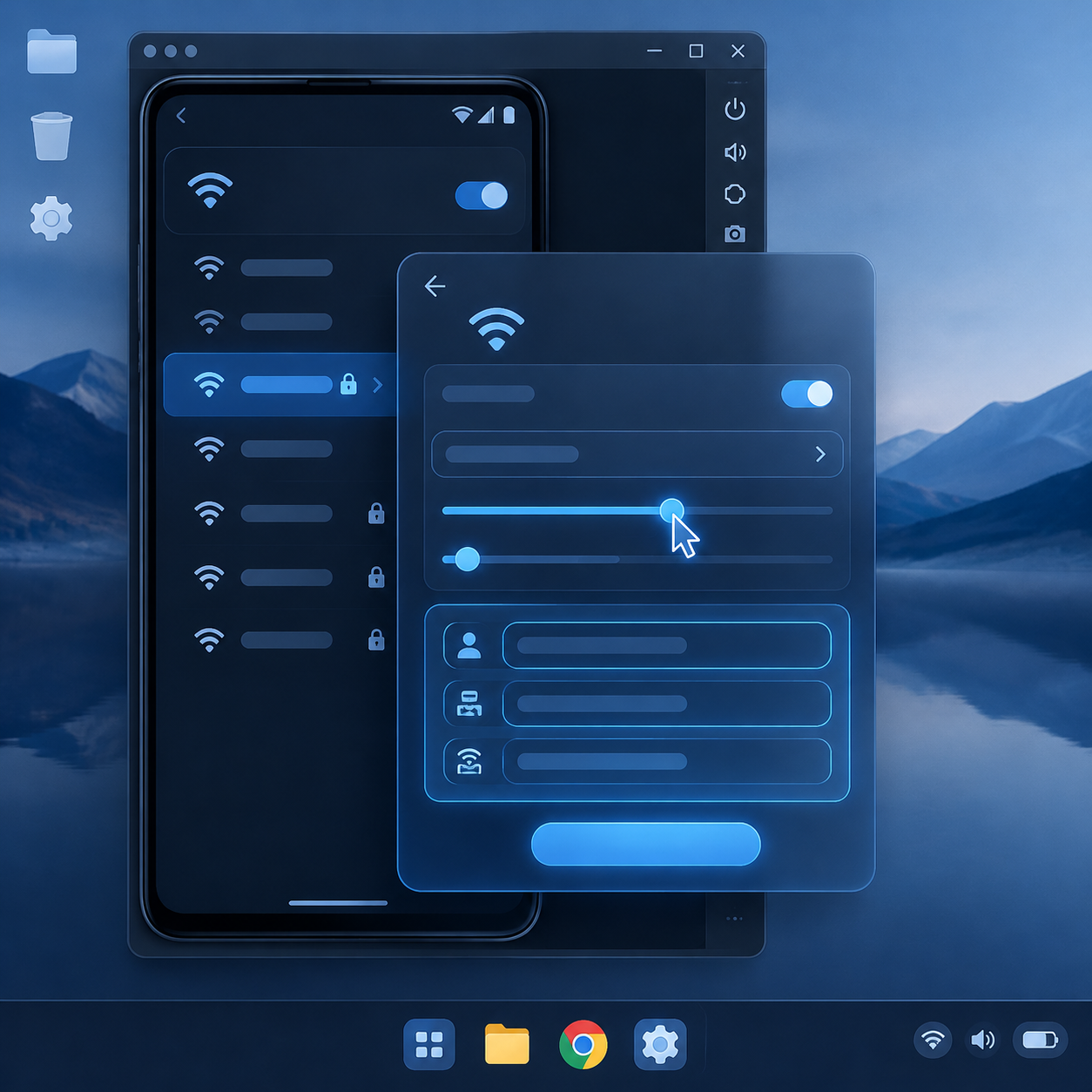
This method is suitable for proxies that do not require account/password authentication or that use IP Whitelisting authorization:
- Launch the LDPlayer instance you want to configure.
- Go to System Settings > Network & Internet > Wi-Fi.
- Press and hold the connected Wi-Fi network name (usually AndroidWifi or VirtWifi), then select Modify Network.
- Expand the Advanced options section; under Proxy, switch the mode from None to Manual.
- Enter the corresponding Proxy hostname and Proxy port.
- Click Save to apply the changes.
Method 2: Routing All Applications Using a Supporting Tool (Postern or Super Proxy)
To ensure that all application data passes through the intermediary connection and supports username/password authentication, using a dedicated app is the optimal solution:
- Download and install an APK network routing application (e.g., Super Proxy) into the LDPlayer instance.
- Open the app and select the option to add a new configuration (Add Proxy).
- Select the appropriate protocol (SOCKS5 preferred).
- Enter the full proxy information: Host, Port, Username, and Password.
- Activate the connection and grant permission to set up the VPN profile when the Android system displays the confirmation prompt.
Guide to Setting Up a NoxPlayer Proxy for Account Farming
The process of setting up a NoxPlayer proxy for account farming is similar to LDPlayer, with a few specific notes regarding system permission mechanisms.
Enabling Root Access on NoxPlayer
Some routing tools like ProxyDroid require root administrator privileges to deeply intervene with system packets:
- Click on the gear-shaped Settings icon in the upper right corner of the NoxPlayer interface.
- In the General settings tab, find the Root startup option and check it to activate.
- Click Save settings and restart the NoxPlayer instance.
Configuring the Proxy Network on NoxPlayer
Once the emulator device is prepared:
- Go to Android Settings (Tools > Settings) inside NoxPlayer.
- Select Wi-Fi, left-click and hold the connected network, and select Modify Network.
- Switch the Proxy setup mode to Manual and enter the server parameters.
- If using a third-party routing app, open the application, enter the SOCKS5 server details, choose the system-wide routing mechanism, and enable the connection status.
Process for Verifying Proxy Connection Integrity

After completing the configuration on any emulator, verifying technical parameters is required to ensure device information is not exposed:
- Check the public IP address: Open a web browser inside the emulator and visit IP checking sites to verify that the displayed IP address has changed to the proxy location.
- Check for location and DNS leaks: Ensure the Domain Name System (DNS) matches the proxy's geographic location, preventing the DNS from pointing back to network servers at the host device's physical location.
- Check stability: Maintain the connection and test-open target apps to monitor latency, ensuring the line remains uninterrupted throughout the working session.
Important Notes to Keep Accounts Safe
In addition to network configuration, the safety of mobile app accounts also depends on several other technical factors:
Synchronize Device Fingerprints: Each emulator instance should be created with a distinct hardware identifier (IMEI, Device Model, MAC Address, IMSI). Avoid sharing the same hardware profile across multiple different accounts.
Avoid Sudden IP Address Changes: When farming highly sensitive accounts, users should prioritize static proxies with long retention periods. Constantly changing network addresses across different countries in a short span of time is a signal that makes accounts easily flagged as risky by security systems.
Allocate Resources Reasonably: When running a large number of emulator instances simultaneously, calculate the computer's RAM and CPU core usage carefully to avoid app crashes or unexpected network disconnections mid-session.
Related articles
Ready for real proxies, not just the guide?
Buy Residential, ISP, Datacenter, or Mobile proxies — live in minutes.
View products