
Hướng Dẫn Sử Dụng
How to Update Your Proxy IP Whitelist When Your Home or Office IP Changes

Table of contents
Was your proxy working normally but suddenly stopped connecting after you restarted your modem, switched networks, or changed your office internet connection? With an IP-authenticated proxy service, a common cause is that your public IP address has changed while the access allowlist still contains the old address.
Updating it involves more than just adding an address to a dashboard. You need to identify the correct outbound IP, understand the connection path, and verify access permissions. This article explains how to manage a proxy IP whitelist for home and office networks, including scenarios involving dynamic IPs, VPNs, and systems with multiple internet connections.
What is a proxy IP whitelist?
A proxy IP whitelist is a list of source IP addresses that a provider allows to use a proxy service. When a connection arrives, the system compares the IP address it observes against the registered list before deciding whether to grant access.
This mechanism is commonly called IP-based proxy authentication. Depending on the service, it may replace or be combined with a username and password. You should therefore check the documentation for your plan rather than assume that all proxies use the same authentication method.
Distinguishing public IP addresses from private IP addresses
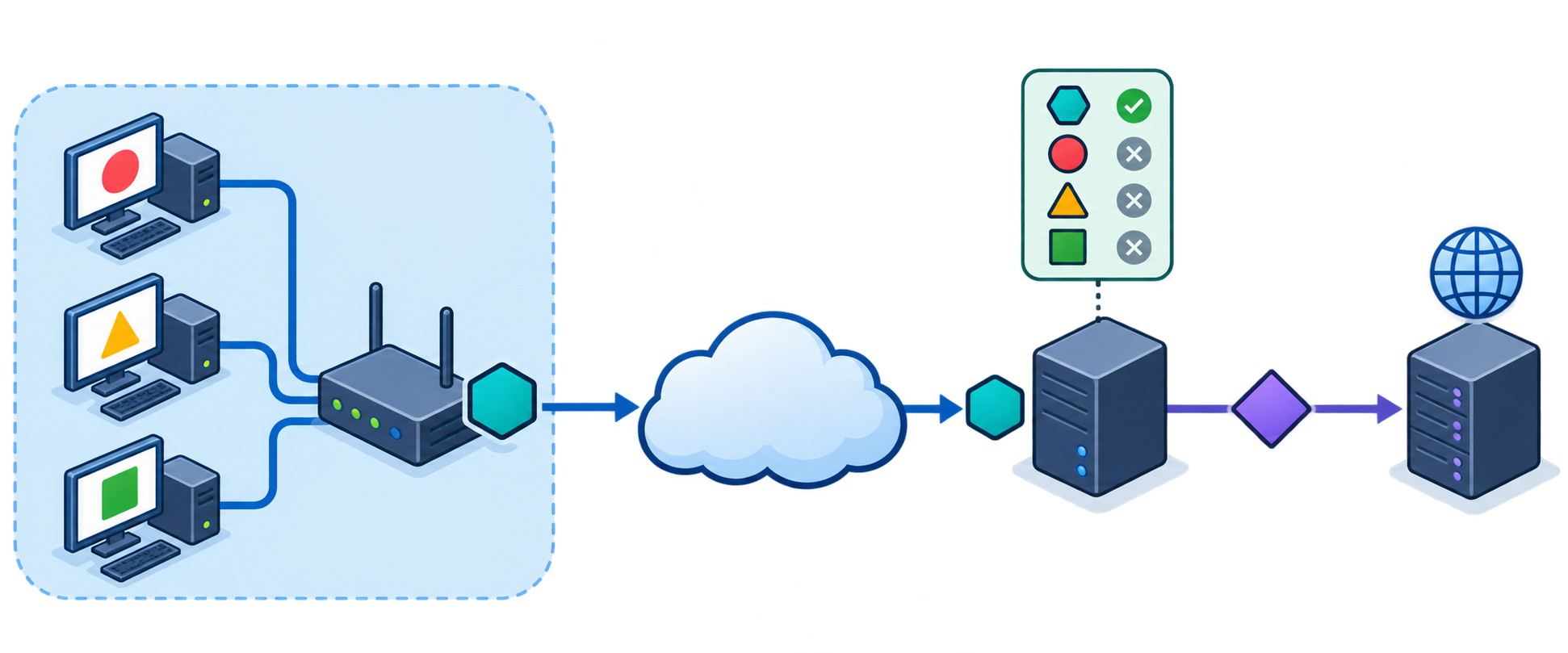
The address displayed in your computer's network settings may simply be a private IP assigned by your router. This is usually not the address you need to add to an internet proxy provider's whitelist.
The address you usually need to register is the public IP of your outbound connection. On an office network, multiple computers may share the same outbound IP. Conversely, a single computer may use different outbound IPs depending on the VPN, network route, or active internet connection.
Why can a dynamic IP interrupt proxy access?
On an internet connection with a dynamic IP, the public address is not guaranteed to remain the same. Your ISP may assign a different address when your equipment reconnects or when changes occur in its service infrastructure.
Your computer may still access the internet normally, but the proxy may reject it because the new source IP is not yet on the whitelist. This is the difference between an internet connectivity problem and a proxy access permission issue.
- Restarting network equipment: a modem or router reestablishes its connection and may receive a different IP.
- Changing work locations: your computer uses different home, office, or mobile hotspot networks.
- Turning a VPN on or off: the outbound IP may change depending on the connection route.
- Switching to a backup internet connection: the office uses another ISP's IP when the primary connection fails.
However, do not assume that every proxy error is caused by the whitelist. An incorrect port, the wrong protocol, an expired service, or firewall settings can produce similar symptoms.
Preparing to update your proxy whitelist
Before making changes, confirm that you are authorized to manage the proxy account and the relevant internet connection. If the service is shared within a business, coordinate with the person responsible to avoid disrupting other systems.
- Identify the correct service plan, proxy endpoint, and authentication method.
- Record the current IP list and the purpose of each entry.
- Check whether the machine running the application uses a VPN, gateway, or dedicated network route.
- Prepare access to the dashboard or management API supported by the provider.
Do not delete an address simply because it differs from your computer's current IP. That address may serve a server, branch office, or task running elsewhere.
Steps to update your proxy IP whitelist when your IP changes
Identify the public IP of the actual environment connecting to the proxy
Check the public IP from the machine and environment that will connect to the proxy. If an application runs on a server or virtual machine, checking from your personal laptop will not accurately reflect the application's source IP.
You can use a trusted IP-checking tool or a diagnostic tool supplied by the provider. If your network routes traffic based on the application or destination, also cross-check the network configuration or connection logs.
Do not register the outbound IP supplied by the proxy as your source IP. Distinguish between the address of the network connecting to the proxy and the address the destination website sees after traffic has passed through the proxy.
Compare the new IP with the current whitelist
In the dashboard, find the section for managing IP addresses allowed to access the service. Depending on the provider, it may be called authenticated IPs, authorized IPs, or a whitelist.
If your current IP is already listed, check whether it applies to the correct plan and endpoint. Some services manage access permissions separately for each product or resource group.
Add the new IP and save the configuration
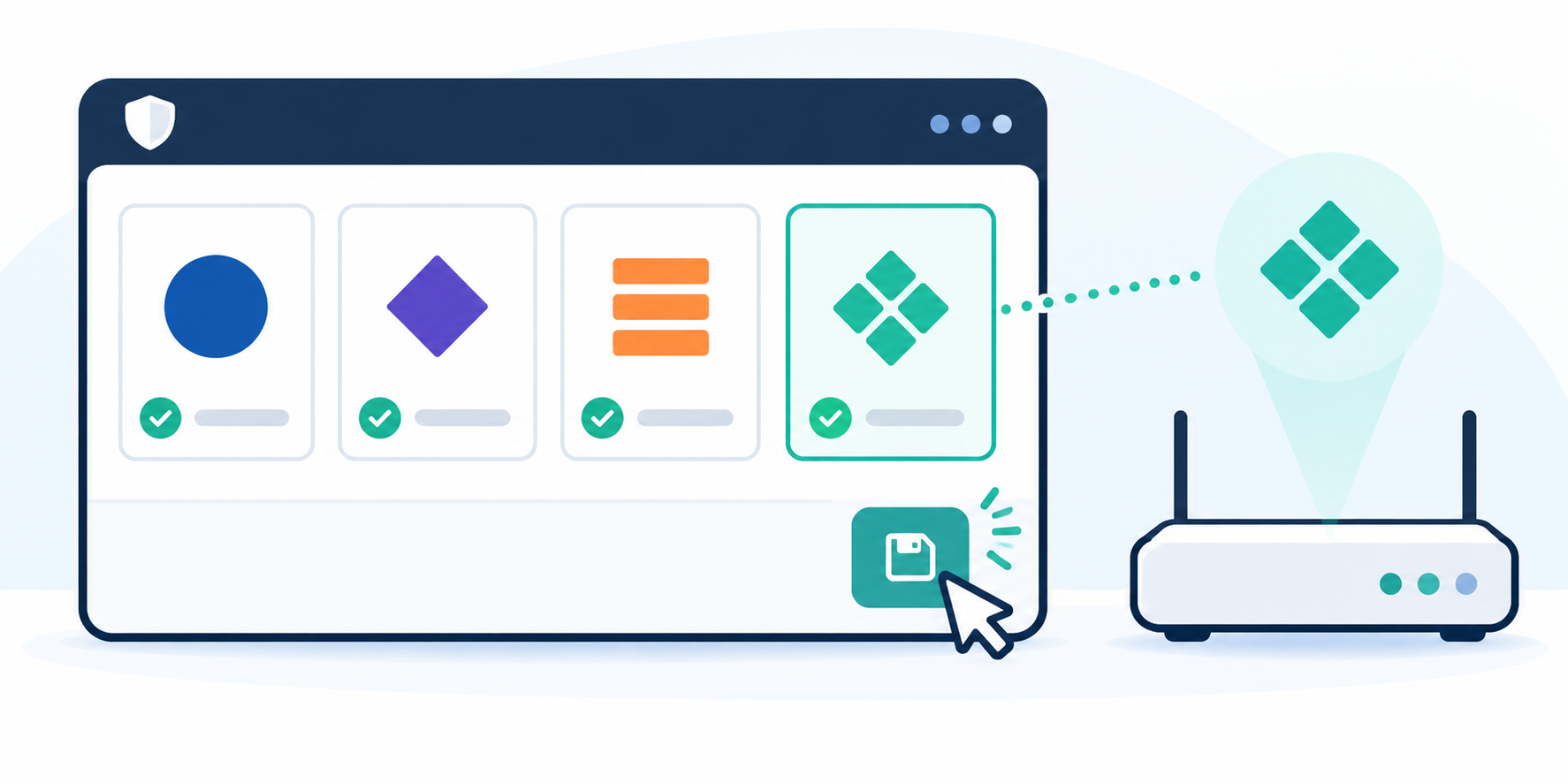
Enter the exact public IP address you just verified. If the system supports notes, label it by location or purpose, such as home network, office, or application server.
Where the service permits it and both addresses are within the approved scope of use, add the new IP before removing the old one. If you must replace the address directly because of list limits, choose an appropriate time and notify the people involved.
Do not authorize a broad address range just to resolve an access error quickly. Permissions should be limited to the address or network range actually required.
Wait for the change to take effect and test again
After saving, check the confirmation message or update status according to the provider's documentation. Do not assume that changes always take effect immediately.
Establish a new connection from the application that needs to use the proxy rather than relying solely on an existing session. Also verify the hostname, port, protocol, and any additional credentials required by the service.
Remove IP addresses that are no longer used
Once the new connection is stable, review the old address. Keep it only if an authorized device or internet connection still uses it.
An ISP may reassign a dynamic IP to another subscriber after you stop using it. Keeping an old address indefinitely can therefore leave access permissions in place that are no longer appropriate.
Updated the whitelist but the proxy still will not connect?
Check each layer in turn to avoid changing multiple settings at once and making the cause difficult to identify.
- Check internet access: confirm that the machine can still access the internet without the proxy.
- Check the source IP: determine whether a VPN, backup connection, or routing policy has changed the outbound IP.
- Check the whitelist scope: confirm that the IP was added to the correct account, product, and endpoint.
- Check the application configuration: compare the server address, port, and protocol with the provider's information.
- Check the service status: review the expiration date, usage limits, and operational notices.
- Read the logs: distinguish between authentication errors, connection errors, and domain name resolution errors.
An error message is only an initial clue, not a definitive diagnosis. When requesting support, provide the time the error occurred, the endpoint, and the error message with passwords or other confidential information removed.
Considerations for VPNs, multiple internet connections, and IPv6
A VPN can change the address that needs authentication
If the connection to the proxy passes through a VPN, the provider will generally see the VPN's outbound IP rather than your home network's IP. Keep the VPN state consistent during testing and use, and follow your organization's network policies.
Office networks may have multiple outbound IPs
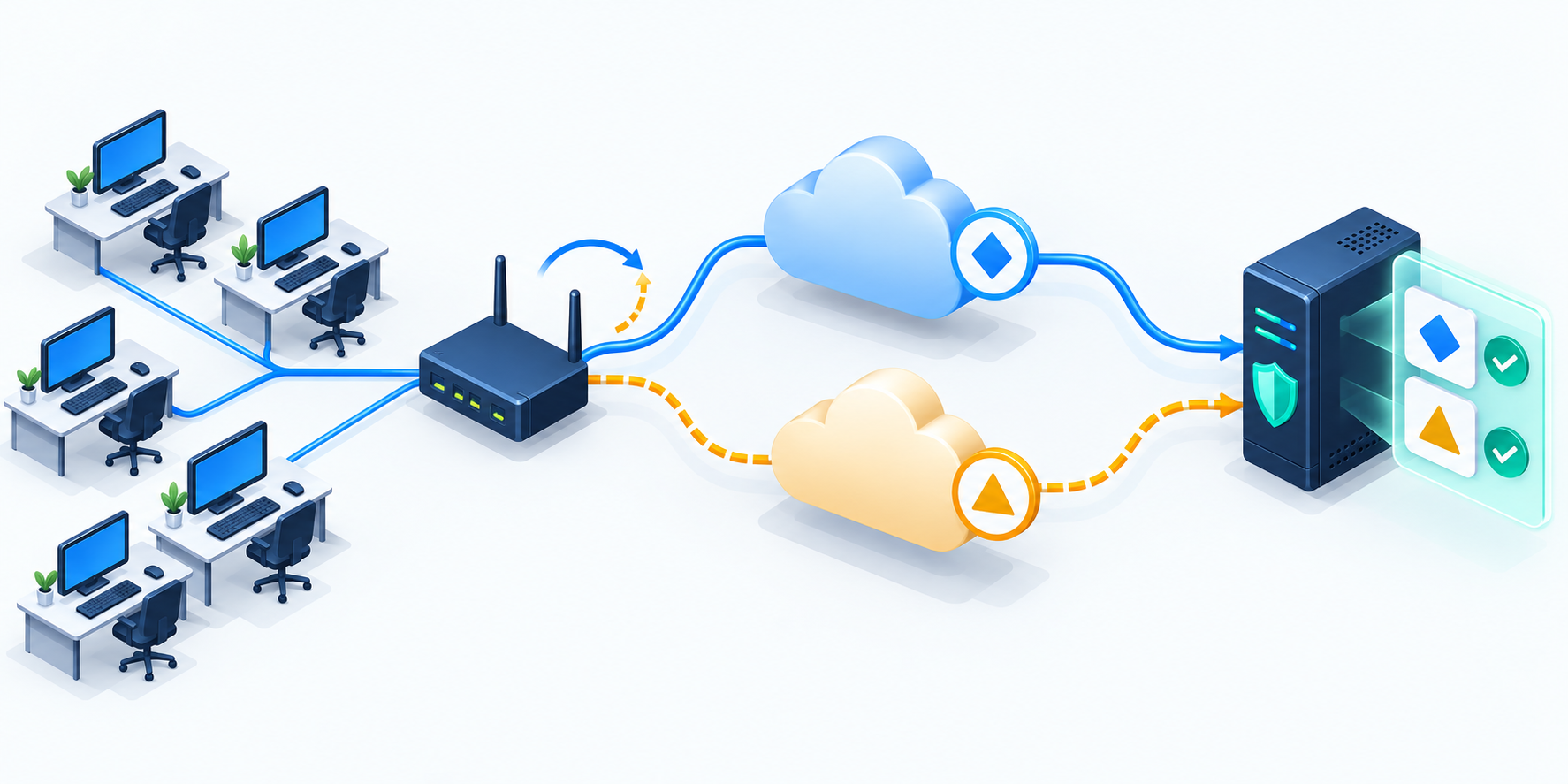
Load-balancing or failover systems may send connections over different internet links. In that case, adding only the IP visible at a particular moment may not be enough.
The administration team should identify the valid outbound IPs and register them within the service's permitted limits. Another option is to configure a consistent route for proxy traffic if that suits the network architecture.
Check IPv4 and IPv6 support
An IP-checking website may display IPv6 while the connection to the proxy endpoint uses IPv4, or vice versa. Verify the address type the actual connection uses and the provider's support before updating the whitelist.
Should you automate proxy whitelist updates?
For environments that frequently use proxies with dynamic IPs, automation can reduce manual work. Implement it only if the provider offers an officially supported API or management method.
A suitable process checks the outbound IP, compares it with the saved state, and sends an update request when a change occurs. The system should then confirm the result and log it for review.
- Store API credentials in a secrets vault or protect them with an appropriate mechanism.
- Grant only the necessary permissions and comply with API rate limits.
- Do not delete the current whitelist if identifying the new IP fails.
- Send an alert when an update fails rather than silently expanding access permissions.
A dynamic DNS service does not automatically provide the ability to update a proxy IP whitelist. If the provider accepts only IP addresses, updating a domain's DNS record does not replace editing the authentication list.
Choosing the right way to maintain connectivity
For occasional personal use, manual updates may be sufficient. For critical tasks or shared systems, consider a static outbound IP, a managed gateway, or automation through an official API.
If the provider supports username and password authentication, this is also worth considering when you frequently switch networks. However, you still need to protect your login credentials and check the service's security requirements.
The core principle is to identify the correct source IP, grant access within the appropriate scope, and test after every change. When done consistently, updating your proxy whitelist helps reduce disruptions caused by dynamic IPs without weakening access controls.
Related articles
Ready for real proxies, not just the guide?
Buy Residential, ISP, Datacenter, or Mobile proxies — live in minutes.
View products